FlinkLink
Your PC's screens, keyboard and mouse, for your Mac
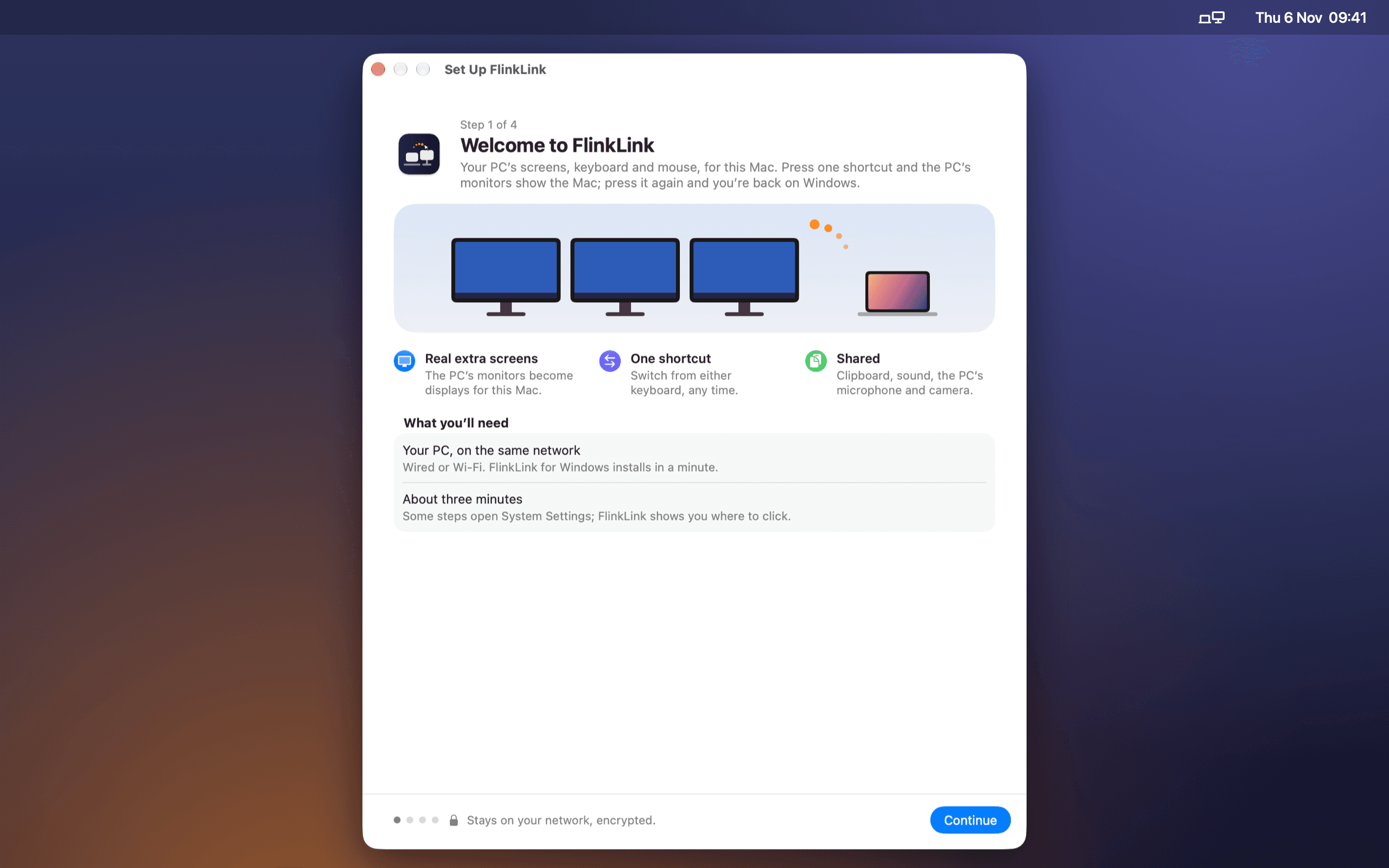
FlinkLink turns a Windows PC's monitors into real extra screens for a Mac, over your home network, with no cables and no capture card. The Mac creates displays the size of the PC's monitors and streams them as low-latency video; the PC shows them full screen and sends its keyboard and mouse back. One shortcut, on either keyboard, moves you between the two.
- Beta, coming soon
- macOS 15 or later, and Windows
- One payment, both computers
One desk, two computers
A Mac laptop next to a PC with three good monitors is a common desk and an awkward one. You either squint at the laptop, buy a hardware switch that only moves the keyboard, or run cables you have to unplug every time. FlinkLink makes the PC's monitors the Mac's for as long as you want them, then hands them back.
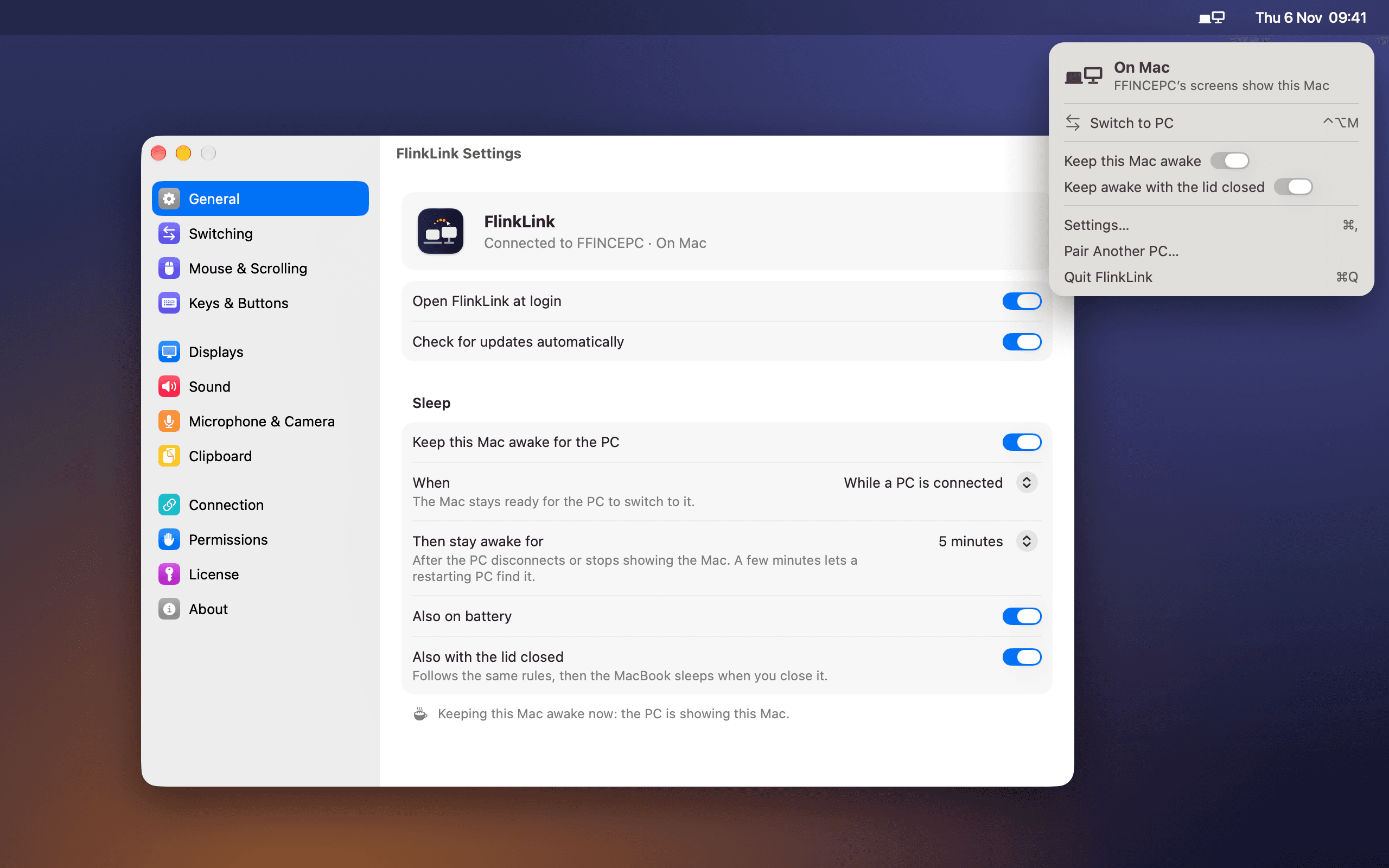
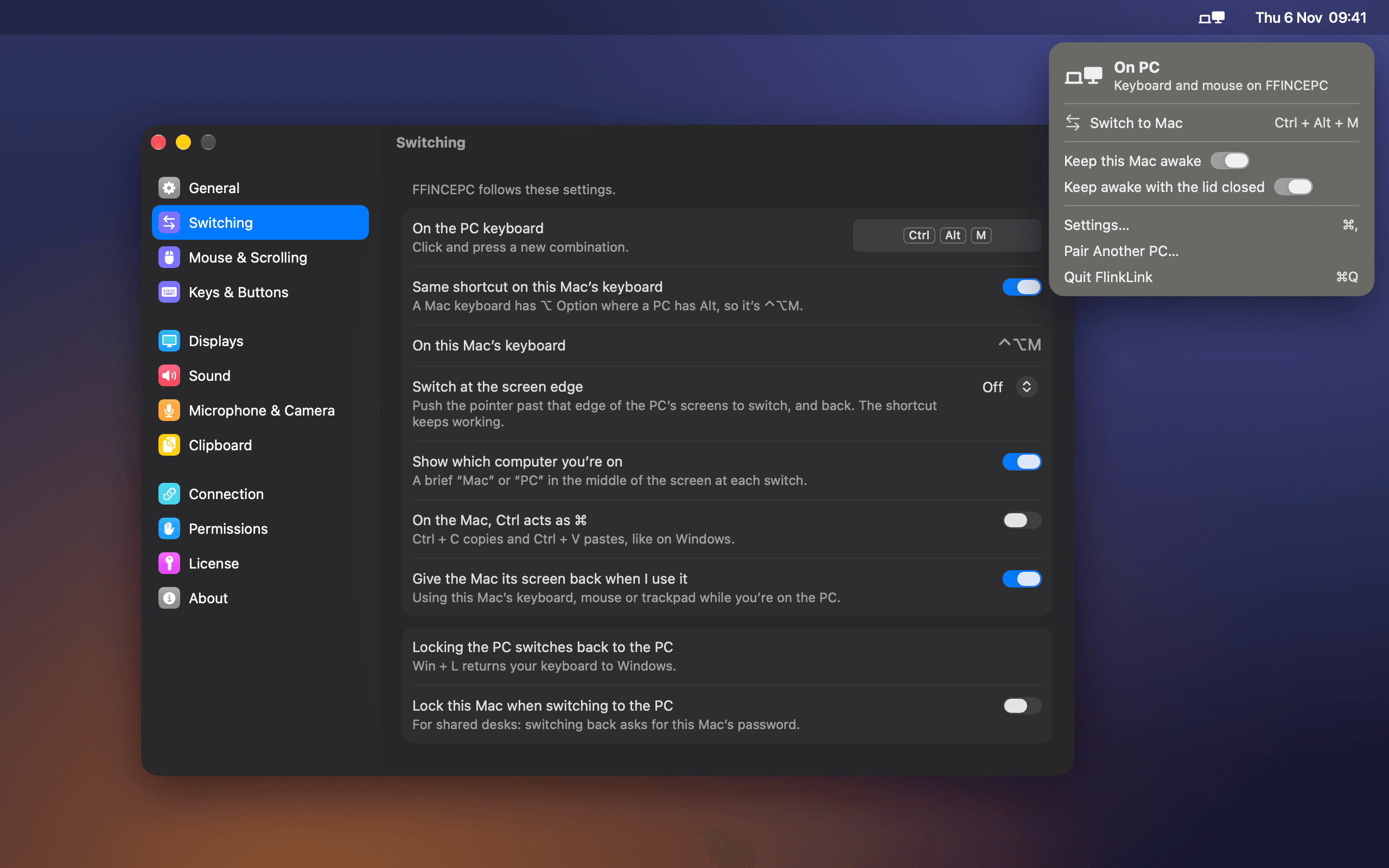
Press Ctrl + Alt + M on the PC's keyboard, or ⌃ ⌥ M on the Mac's, and the PC's screens show the Mac within a second or two. Press it again and Windows is back exactly as you left it. Touch the MacBook itself and it takes its screen back.
Everything comes along
Copy on one computer and paste on the other, text, images and whole folders of files. The Mac's sound plays on the PC's speakers or headphones. The PC's microphone and webcam show up on the Mac as FlinkLink Microphone and FlinkLink Camera, for FaceTime, Zoom or anything else that records.
Caps Lock is one Caps Lock for both computers, and its light follows you across a switch. The MacBook's own screen can sit beside the PC's monitors as one more display, or go dark while you work from the PC.
Your keyboard, your mouse, your rules
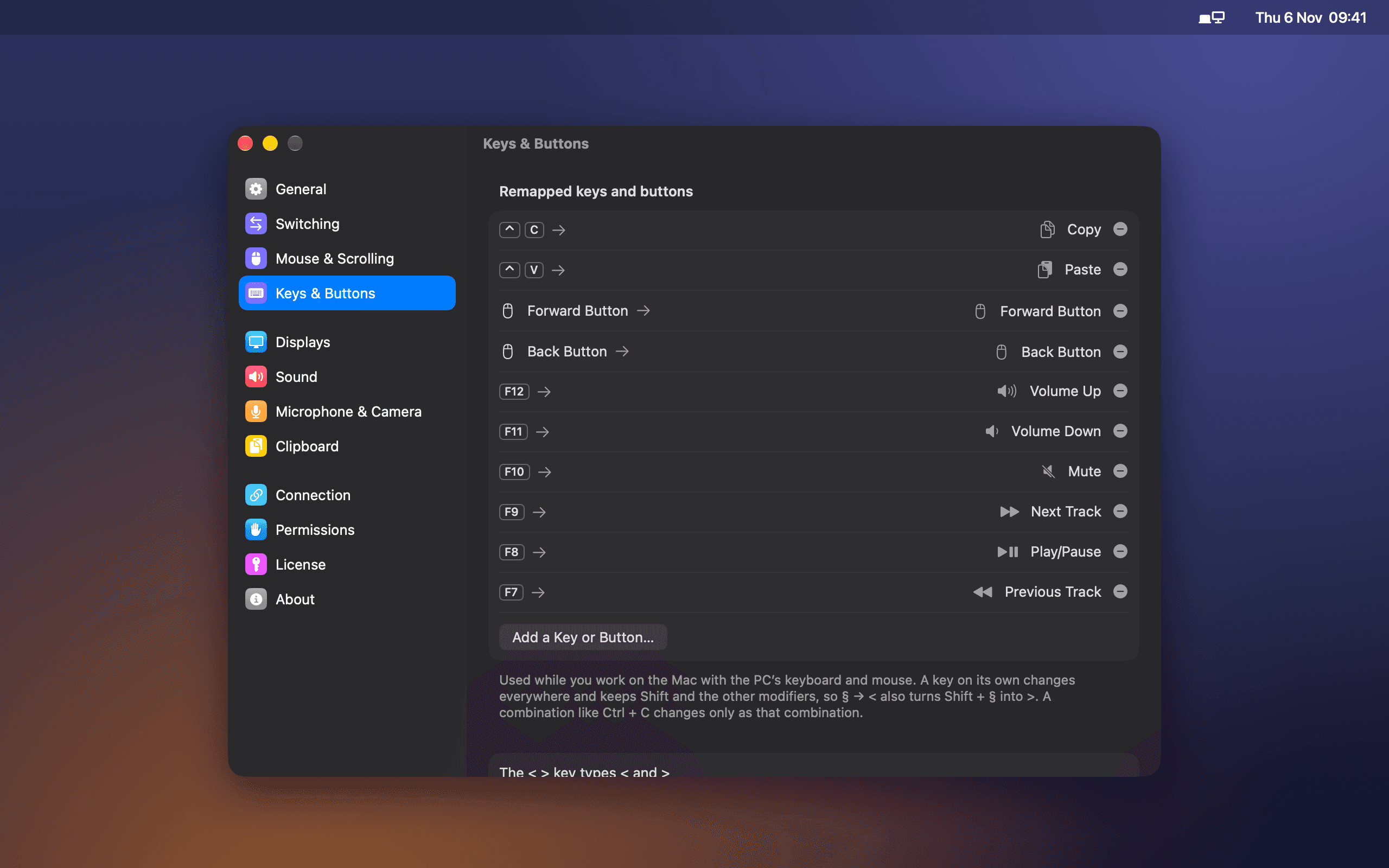
A PC keyboard on a Mac is mostly right and a little wrong. FlinkLink fixes the little wrong: the key beside left Shift types < and > as printed, and Ctrl can act as ⌘ so Ctrl + C copies the way your hands expect. Any key, combination or mouse button can become another key, a shortcut, or an action like Copy, Paste, Play/Pause, Mission Control or switching computers, so a mouse's side buttons can copy and paste.
It keeps the Mac awake for the PC only when you want it to: while a PC is connected, or only while the PC shows the Mac, for a few minutes after, on battery or not, and with the lid closed if you like.
Nothing asks before you do
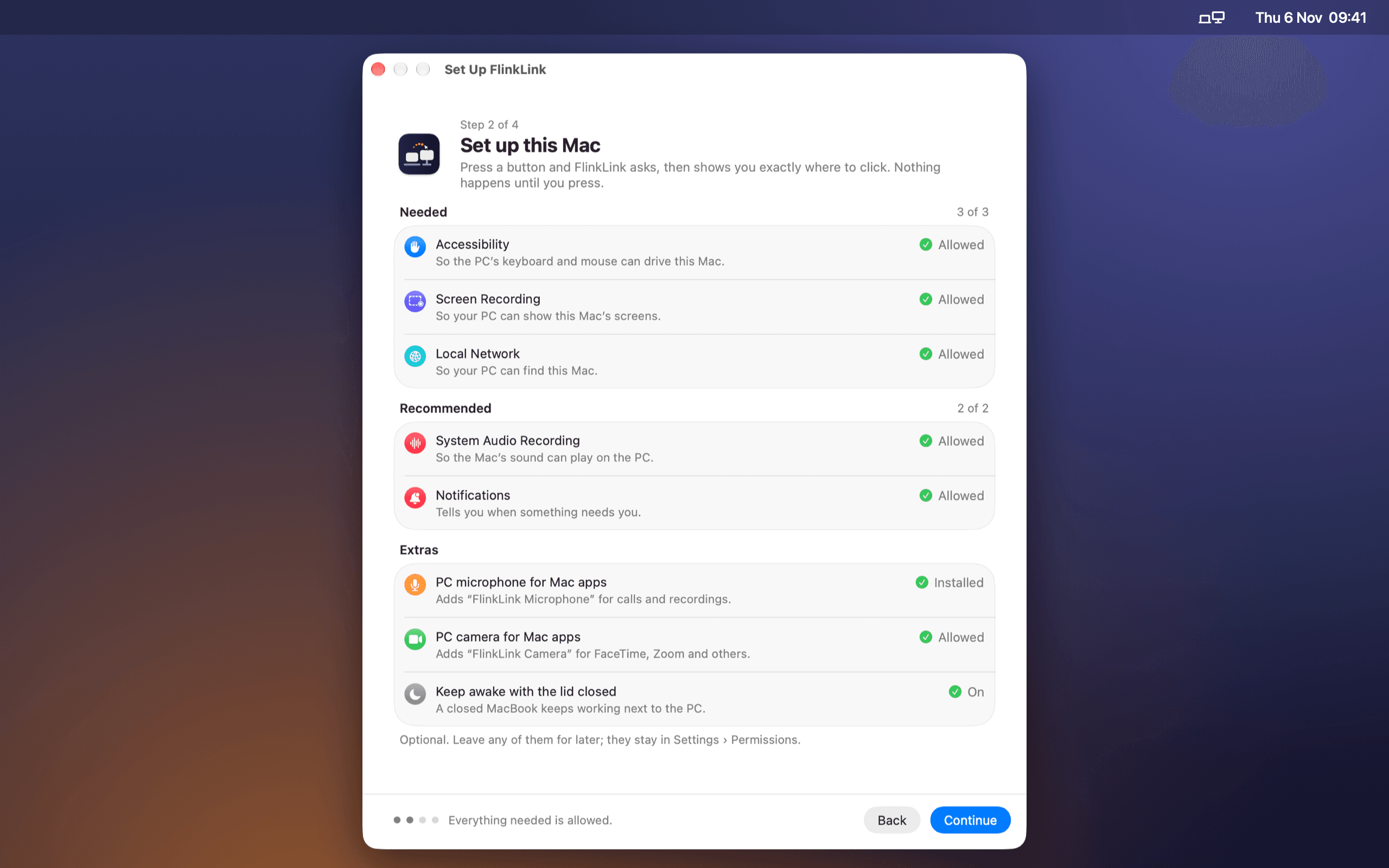
A first-run assistant lists everything FlinkLink needs, and nothing asks for permission until you press its button. When macOS sends you to System Settings, a floating guide rings the exact switch to turn on. Pairing is one code typed on the PC, checked by both sides, and everything after that is encrypted. Nothing leaves your network.
How it is built
The Mac app is Swift: virtual displays, ScreenCaptureKit and hardware H.264 encoding, a camera extension and a Core Audio driver for the PC's camera and microphone. The PC app is C# on .NET with Media Foundation decoding, low-level input hooks and WASAPI audio. The two speak a small binary protocol over TCP with X25519 key agreement and ChaCha20-Poly1305 encryption.